
How to Optimize Parental Controls: Balancing Safety & Privacy for Families
Why Optimizing Parental Controls Is Critical for Your Child’s Safety, Health, and Growth
- Protect your child’s mental health and behavior. Without proper screen time management, children are at higher risk for anxiety, depression, low self-esteem, social anxiety, tantrums, and anger. Optimized parental controls help reduce exposure to harmful content and habits that negatively affect their emotional well-being
- Reduce risky behaviors online. Unmonitored screen time increases the likelihood of interacting with strangers, sharing inappropriate content, or copying harmful behaviors. Proper parental controls guide your teen’s online interactions safely
- Prevent cyberbullying and its impact. Without accountability and oversight, children may experience or participate in cyberbullying, leading to emotional harm
- Support physical health, academics, and self-regulation. Excessive screen time can disrupt sleep, reduce physical activity, and decrease focus on schoolwork. Controls and time limits teach children self-regulation while encouraging healthier routines and learning habits
- Maintain parental oversight and long-term safety. Optimized controls protect privacy, prevent misuse of personal data, and safeguard your child’s reputation
The Consequences of Letting Screen Time Go Unchecked
- Mental health and behavior issues - poor self-esteem, anxiety, depression, social anxiety, tantrums, anger, and lack of confidence
- Increased risky behaviors/talking with strangers - seeing and sharing inappropriate content, copycatting, and communicating with strangers
- Cyberbullying impact - due to lack of accountability, evidence, and reporting that leads to emotional harm
- Declined physical health - lack of sleep, weight gain, and poor immune system due to decreased physical activity and mental health issues
- Academic and learning challenges - procrastination, distractions during study time, and a lack of focus result in lower grades and missed learning opportunities
- Addiction/lack of self regulation - dependency on devices for entertainment, diminishing the ability to self-regulate and find enjoyment in non-digital activities
- Loss of parental oversight and control - not being able to provide guidance, leading to parents feeling hopeless
- Privacy and security - of your child’s data, due to your child’s false belief that the data they share is not being captured (via third party) and used by hackers
- Long-term impact - that can result from your child's content being used against them, harming their reputation, involvement with law enforcement, and loss of future opportunities
Helping Your Teen Navigate Screens
- Parents can model the screen time behavior and habits that they want their kids to emulate
- Find other activities to participate in as a family besides spending time on screens
- Create a Family Media Agreement to discuss and set boundaries and expectations regarding screen time
- When developing a plan to manage screen time, consider the following questions:
- How much screen time is right for your family?
- How much will be active (i.e. creating, learning)?
- How much will be passive?
- Where will passive screen time take place?
- What are our guidelines for how screens are used?
- What kind of monitoring is right for our family based on the age of our students?
Protect, Guide, and Limit: Apple’s Parental Control
What is Family Sharing?
- Family Sharing allows families to share access to many Apple services with up to 5 family members
- Share music, videos, books, iCloud storage, photos, subscriptions, and more
- Parents can access Screen Time through Family Sharing from their own Apple device
- Family Sharing is easily accessed through the settings screen
- To find out more information about Apple Family Sharing and Screen Time, visit our resource: Parents Guide to iPhone Parental Controls (and other Apple devices)
What is Screen Time?
- Screen Time is Apple’s parental controls for the iPhone and iPad
- Allows parents to set screen time limits and see reports of how a device has been used
- The feature can be configured on the device or remotely across devices with the same Apple ID
- Screen Time can be found in the Settings app or via Family Sharing
- Screen Time tracks use on the device, but it cannot track multiple users on the same device
- Parents can set a Screen Time passcode so only they can change the limits or extend the time when requested
Set Limits, Stay Informed, and Keep Kids Safe on Android Devices
What is Google Family Link?
- Parental controls on Android devices are controlled through Google Family Link
- Family Link can be downloaded to a parent’s device and settings can be set and adjusted from the parent’s phone (either Android or Apple)
- Children must have their own Google Account and this account must be the only user on the device the parents want to manage with Family Link
- To find out more information about Google Family Link, visit our resource: Google Family Link Guide for Parents & Educators
What is Digital Wellbeing?
- Students can use Digital Wellbeing within their Android device to set their own screen time goals, app limits, and select Focus modes
- This is a great option for older students who are learning to set their own limits
- To set up Digital Wellbeing:
- Tap "Settings" on your Android device. Scroll down the menu and tap “Digital Wellbeing and Parental Controls”
- From here you can set:
- Screen time goals
- App timers
- Focus modes (Sleep or Work)
- Driving Monitor
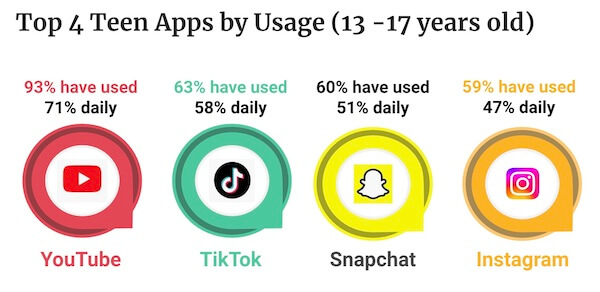
The Most Popular Apps Teens Use: Know, Monitor, and Guide
Keeping Your Teen Safe on YouTube
Win prizes! After watching this video, click here to share quick feedback.
- Family Center is YouTube’s version of parental controls where parents can set content restrictions and turn off autoplay
- Family Center can be found in the Settings menu from the parent’s YouTube app or from Google Family Link
- Parents can add a “YouTube Kids profile” for younger kids or “Invite a teen” for older kids so they can supervise their YouTube experience
- By default, teen accounts will receive “Take-a-break” notifications every 60 minutes spent on the app and a “bedtime reminder” notification at 10pm each night
- To find out more about YouTube, visit our resource: Parent’s Guide to YouTube
How to Manage Your Teen’s TikTok Experience
Win prizes! After watching this video, click here to share quick feedback.
- TikTok’s Family Pairing allows parents to customize their teen’s settings
- Parents can review teen’s screen time and set a daily allowed limit on TikTok
- They can restrict who is allowed to send messages to their teen or turn off direct messaging completely
- Parents can decide if their teen’s account is public or private and if the account can be recommended to others
- Content filters can be set to select keywords and hashtags to exclude from the teen’s feed and to restrict exposure to content that may not be appropriate
- To find out more about TikTok, read our resource: TikTok Guide for Parents
Protecting Your Teen on Instagram Without Intruding
Win prizes! After watching this video, click here to share quick feedback.
- Through Instagram’s Family Center, parents can supervise their teens’ accounts
- Parents can set their teen’s account to public or private
- They can decide who their teens can interact with through messages and group chats
- Parents can also set sensitive content restrictions, daily time limits, and scheduled breaks
- Parents can see who their teen follows and who follows them. However, they cannot view direct messages or disable the “vanish mode” feature
- To learn more about Instagram, read our resource: Instagram App Guide: What Parents Need to Know
Understanding Snapchat’s Parental Controls to Guide Your Teen
Win prizes! After watching this video, click here to share quick feedback.
- Through Snapchat’s Family Center, parents can supervise their teens’ experience on Snapchat
- Parents can see who their teens are friends with and who they have exchanged messages with in the past 7 days, but they cannot view the content of those conversations.
- Teens’ Snapchat accounts are private by default, and they can only communicate with mutually accepted friends.
- Location sharing is turned off by default for teens (although they can enable it), and parents can check who their teens are sharing their location with.
- Parents can restrict their teen’s ability to view sensitive content.
- To learn more about Snapchat, read our resource: The Ultimate Snapchat Guide for Parents
How to Start Meaningful Conversations About Screen Time
- “Hey, which apps have you been using the most lately? Can you show me how that app works? Will you teach me?”
- “I’ve been learning about tools we can use to protect your privacy and avoid harmful content online. What do you think about how we can make your online experience safer?”
- “I respect your online privacy. How can we balance that with making sure you’re not exposed to things that could harm or mislead you?”
- “I trust you to make good decisions online, but apps and websites don’t always have your best interests in mind. What do you think about exploring some tools together that could help you avoid those risks?”
- “I’ve been learning about the difference between active and passive screen time, and it’s really interesting! I’d love to share what I’ve discovered and hear your thoughts on how we can be more intentional about screen time together.”
Conclusion
Parental controls are an important and necessary step in keeping our kids safe while using technology, but they can often be confusing. Finding the right balance between student safety and privacy is a challenge for many families. Parental controls can help parents protect their children from inappropriate content, limit screen time, and guide their online habits, but they are most effective when parents understand how to use them correctly.
In this guide, we’ll provide practical tips for optimizing your family’s parental controls, helping keep your children safe while respecting their growing independence. We’ll also explain the tools and strategies that can help create a safer, healthier digital environment at home.
By balancing safety with privacy, you can help your family develop healthier technology habits and stronger relationships. Take the first step today by exploring your parental control options and having a meaningful conversation with your children about your family’s online safety goals. Remember, the goal is not only to protect your children from online risks but also to equip them with the knowledge and habits they need to navigate the digital world responsibly.
You're not logged in!
Log in or join to protect your family and enter for a chance to win cool prizes
Become a member or log in to learn more on this topic

This is great info, thanks for giving me some ideas on how to start a dialogue with my teen!

Sharon M.
Parent VIP Member
Josh's presentation about social media was unbelievably fantastic. Our students learned so much about what kids should and shouldn't be doing. The fact that it is such a thoughtful process made it all worthwhile.
Director of College Advising
Educator Webinar Attendee
This webinar is a very helpful eye-opener on the apps that are popular with my students.
Irene C.
Educator Webinar Attendee
You're not logged in!
Log in or join to protect your family and enter for a chance to win cool prizes

., start learning from this page to enter for a chance to win one of our 28+ prizes each week.
Hello, I'm Josh, the founder of SmartSocial.com.
Don't leave this page until you fill out our feedback form that will appear after you learn from the resources...